How to Register Your Address & Credit Card on Amazon Japan
Learn how to register your Tenso address and credit card on Amazon Japan — the final step before using Amazon Pay to purchase DMM Points on FANZA.
Now that you have your Japanese Amazon account and Tenso address, it's time to register both on Amazon Japan. Once your credit card is linked, you'll be ready to use Amazon Pay to purchase DMM Points on FANZA.
What you'll need:
- Your Japanese Amazon account (from Part 1)
- Your Tenso address (from Part 2)
- A valid credit card (Visa or American Express recommended)
Step 1: Go to Account Services
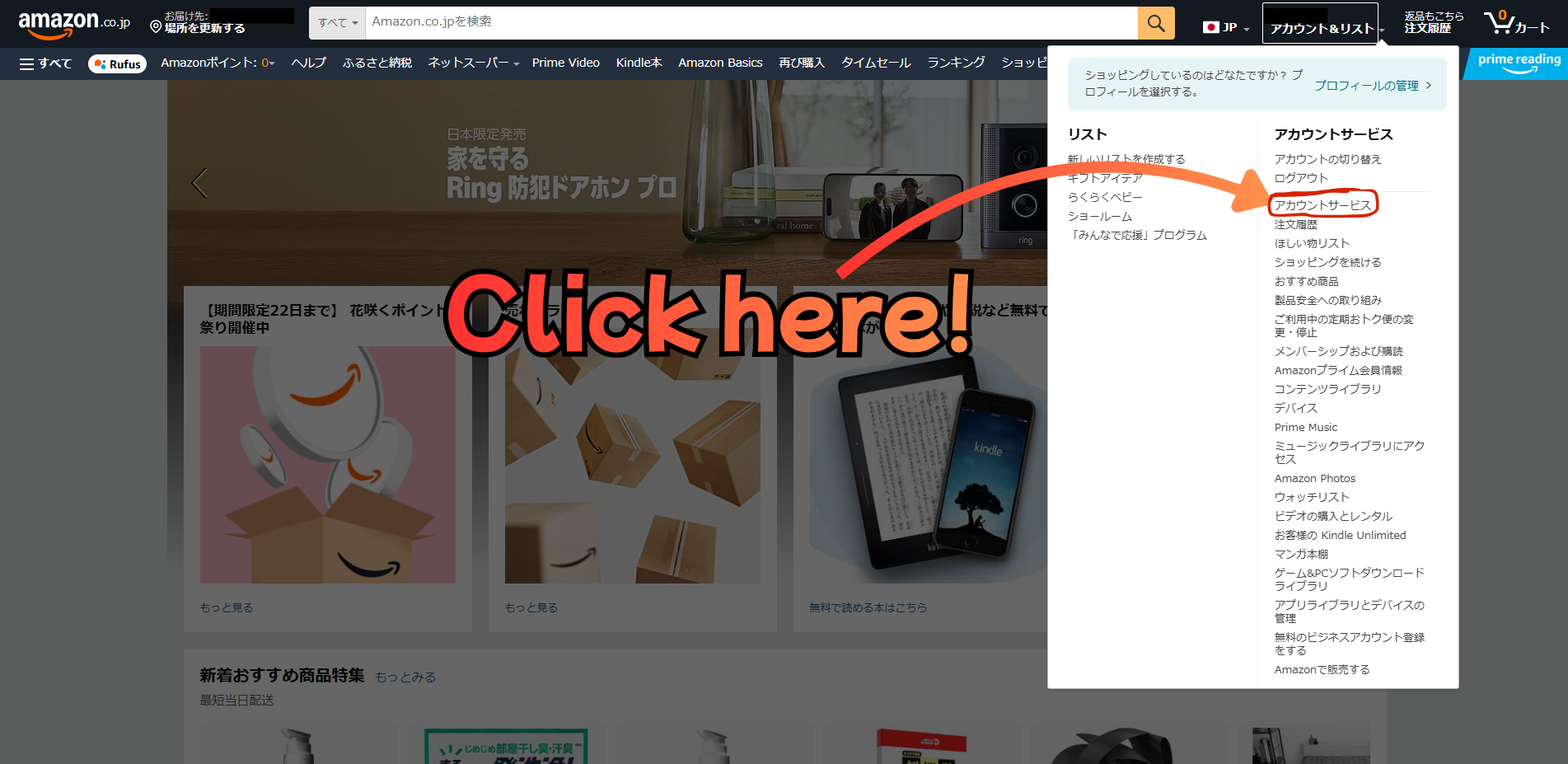
Log in to your Japanese Amazon account. Hover over "アカウント&リスト" (Account & Lists) in the top right corner and click on "アカウントサービス" (Account Services).
Step 2: Open Your Address Book
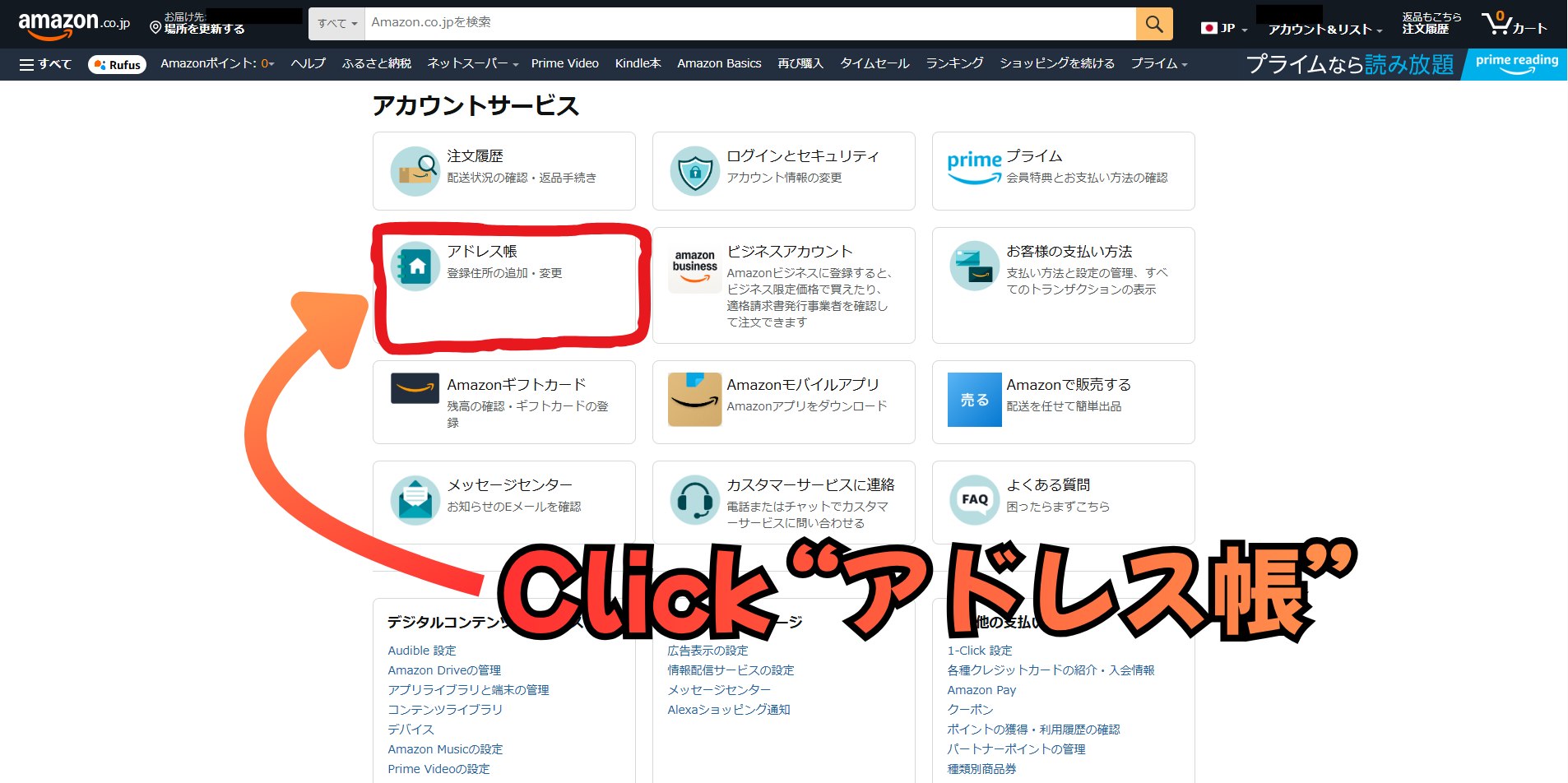
On the Account Services page, click on "アドレス帳" (Address Book).
Step 3: Add a New Address
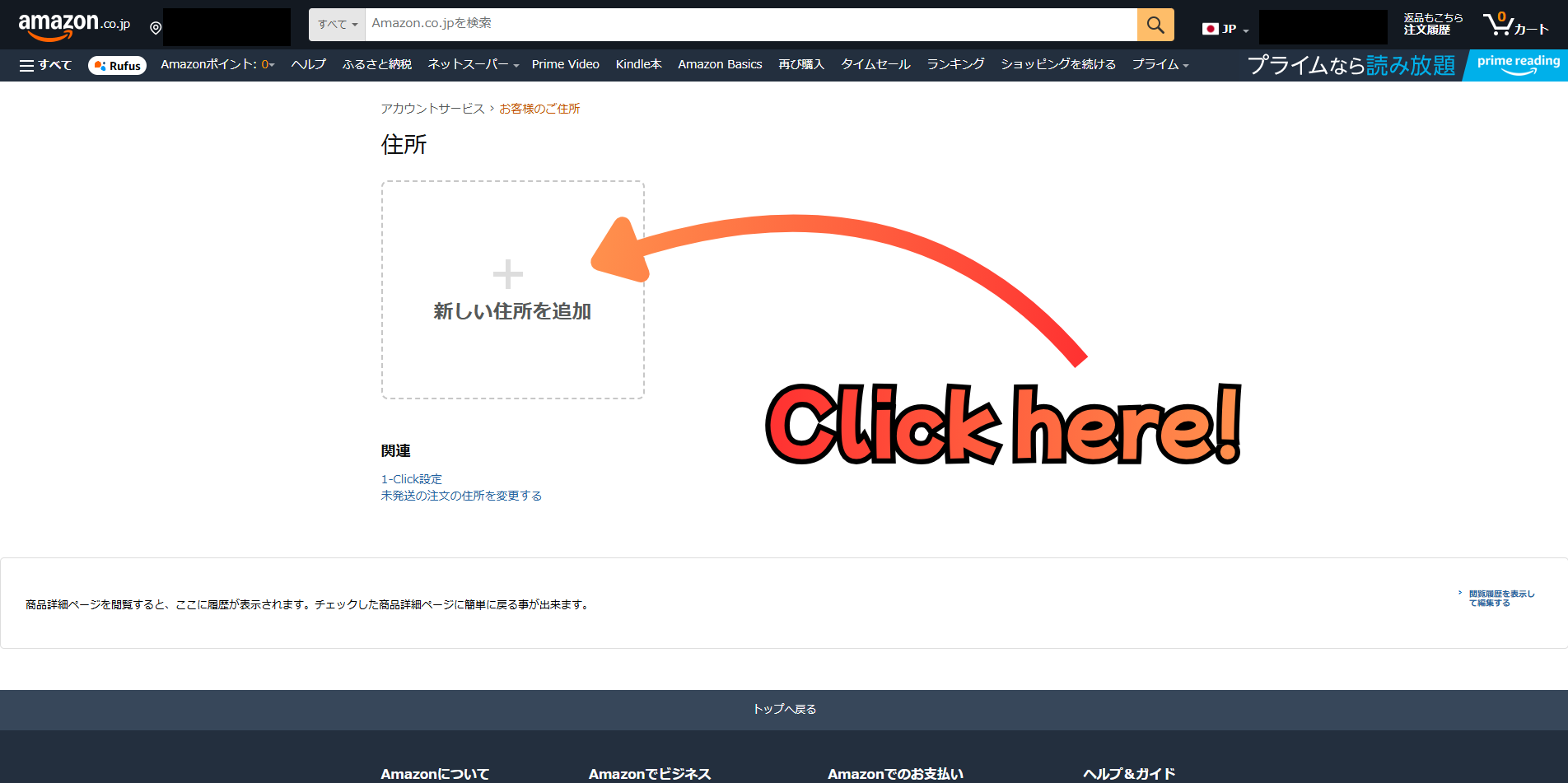
Click "新しい住所を追加" (Add a new address) to add your Tenso address.
Step 4: Enter Your Tenso Address
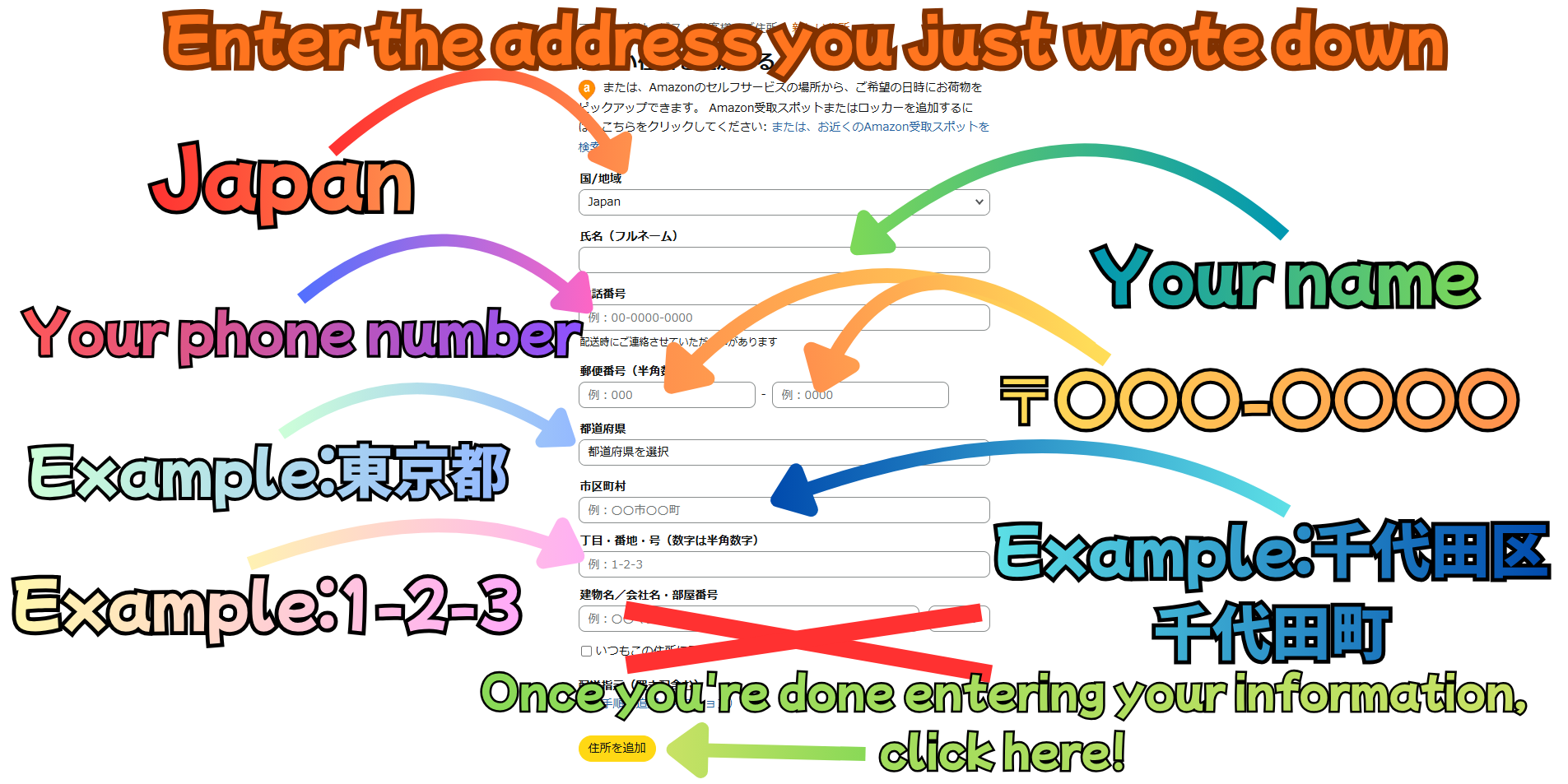
Fill in your Tenso address details as follows:
- Country: Japan
- Full name: Your name
- Phone number: Your phone number
- Postal code: The postal code from your Tenso address (format: 〒000-0000)
- Prefecture: Your Tenso address prefecture (e.g. 東京都, but this may vary depending on your assigned Tenso address)
- City/Town: Entering your postal code may automatically fill in the city/town name. However, the street number (the numerical part of the address, e.g. 1-2-3) will not be filled in automatically — please enter it manually from your Tenso address.
Once you've entered all the information, click the button to save.
Step 5: Go to Payment Settings
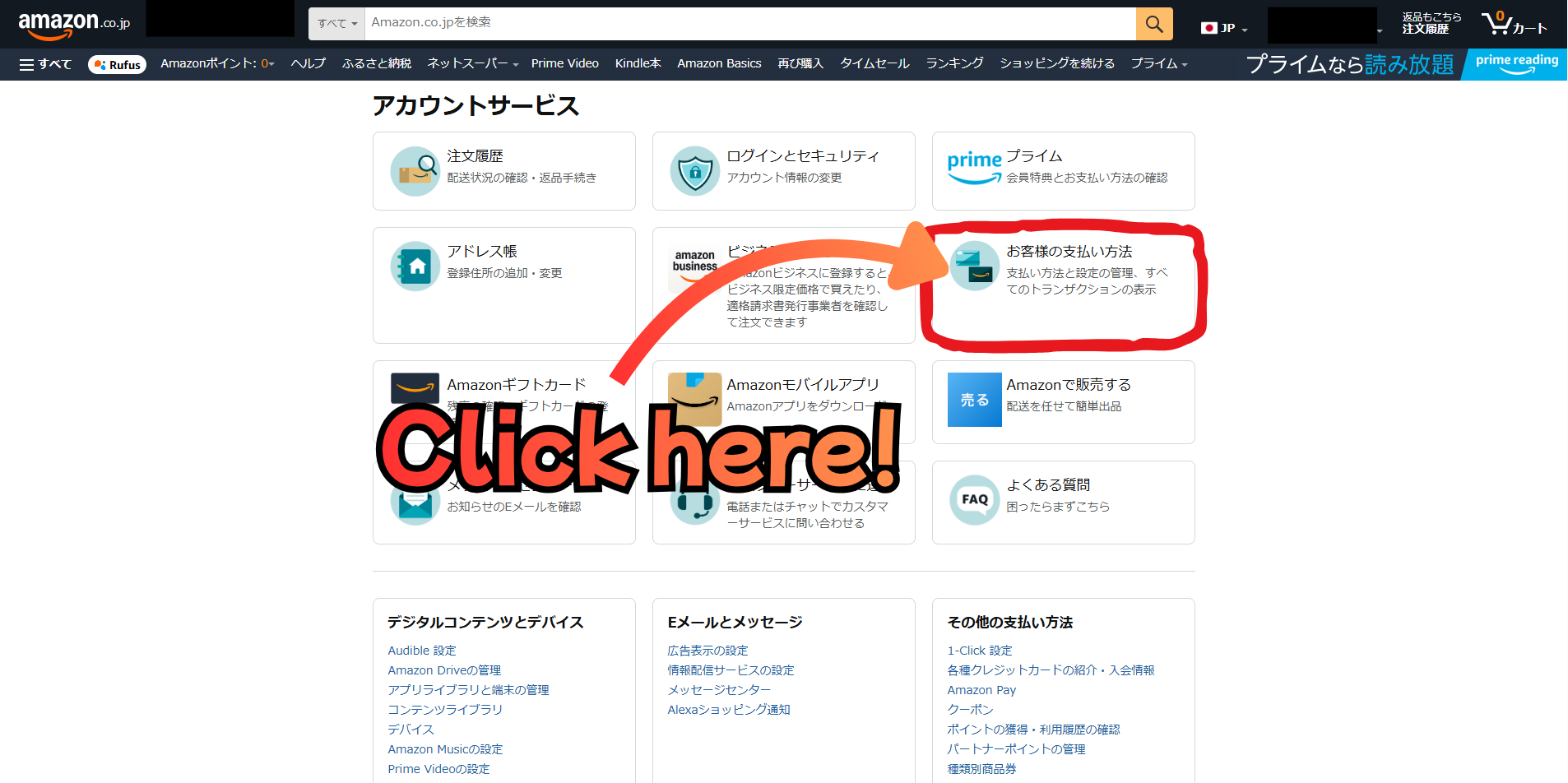
Go back to "アカウントサービス" (Account Services) and click on "お客様の支払い方法" (Your Payment Methods).
Step 6: Add a Payment Method
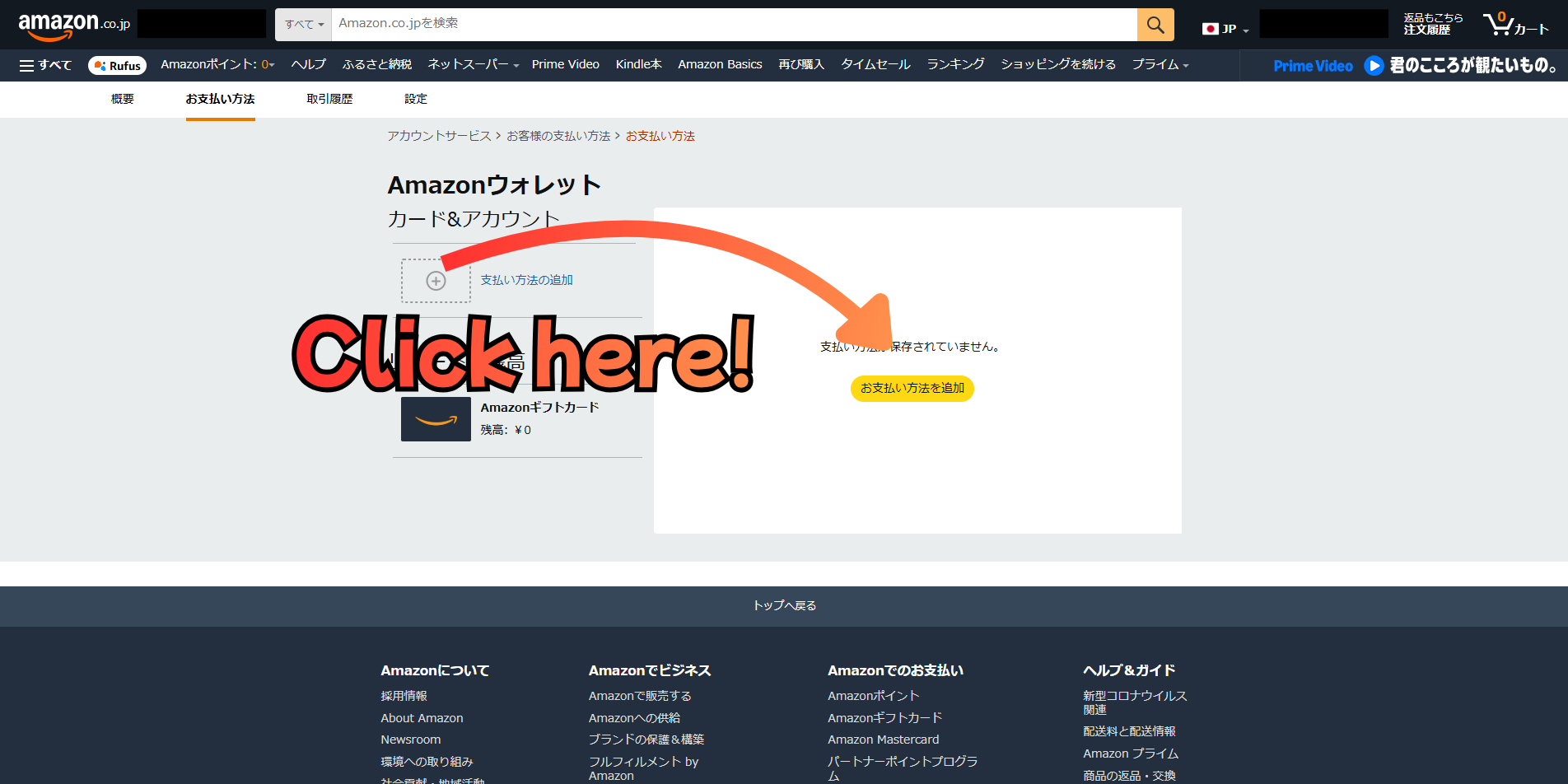
Click "支払い方法の追加" (Add a payment method) to add your credit card.
Step 7: Select Credit or Debit Card
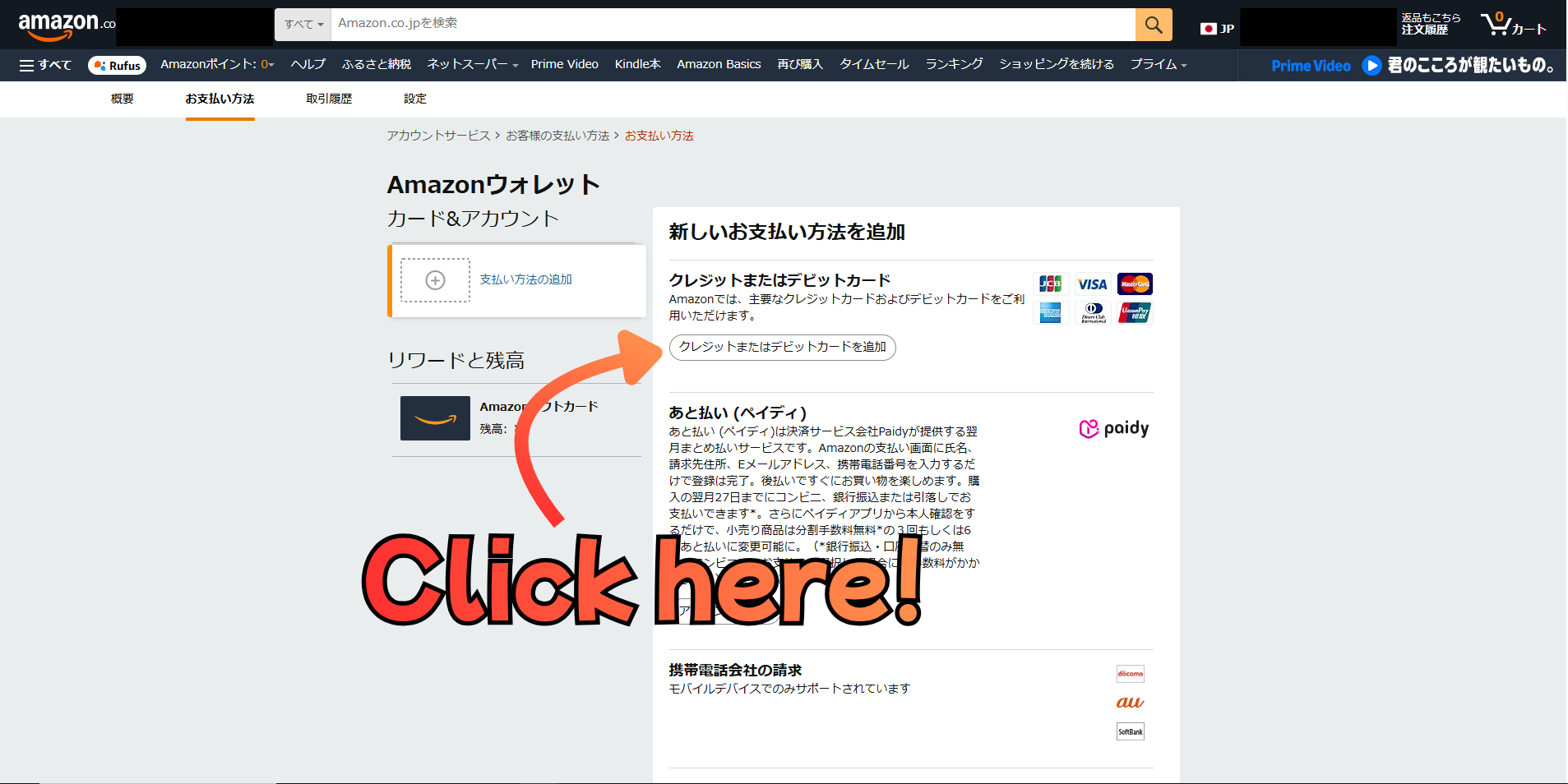
Click on "クレジットカードまたはデビットカード" (Credit or Debit Card) to proceed.
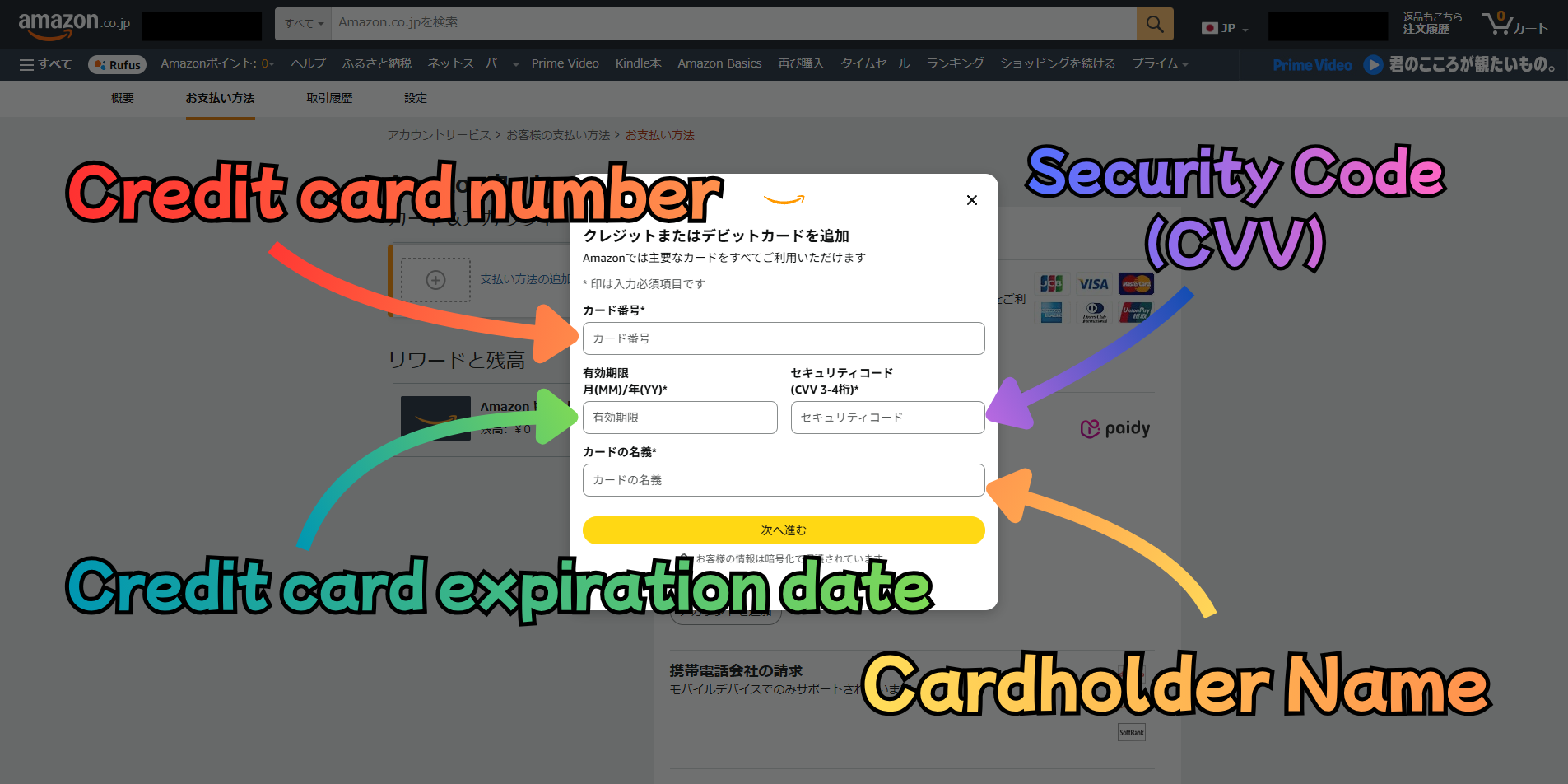
Step 8: Enter Your Credit Card Details
Enter your credit card information:
- Card number
- Expiration date
- Security code (CVV)
- Cardholder name
Once done, click the button to save.
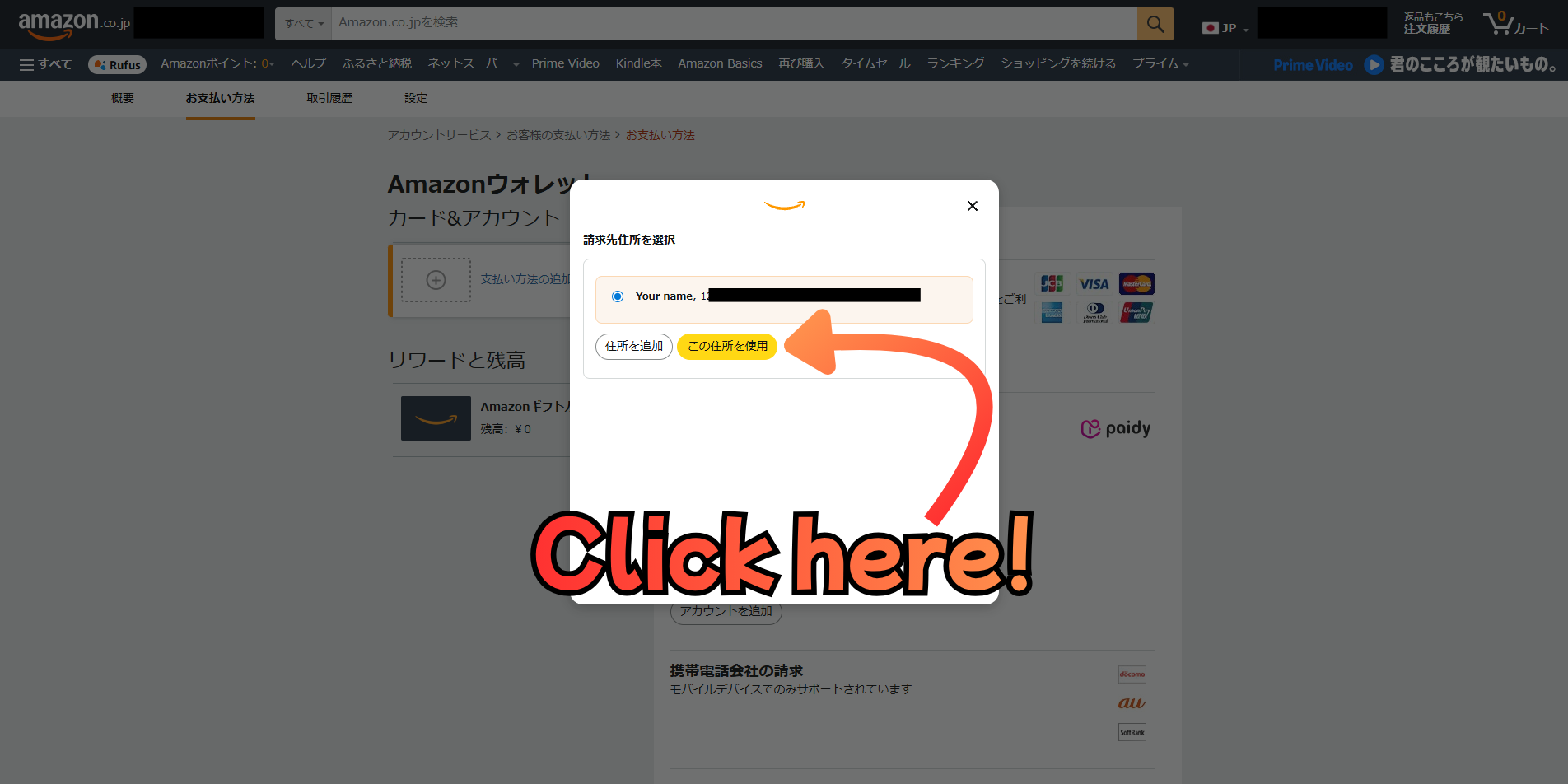
Step 9: Select Your Billing Address
A pop-up will appear asking you to select a billing address. Select your Tenso address and click "この住所を使用" (Use this address).
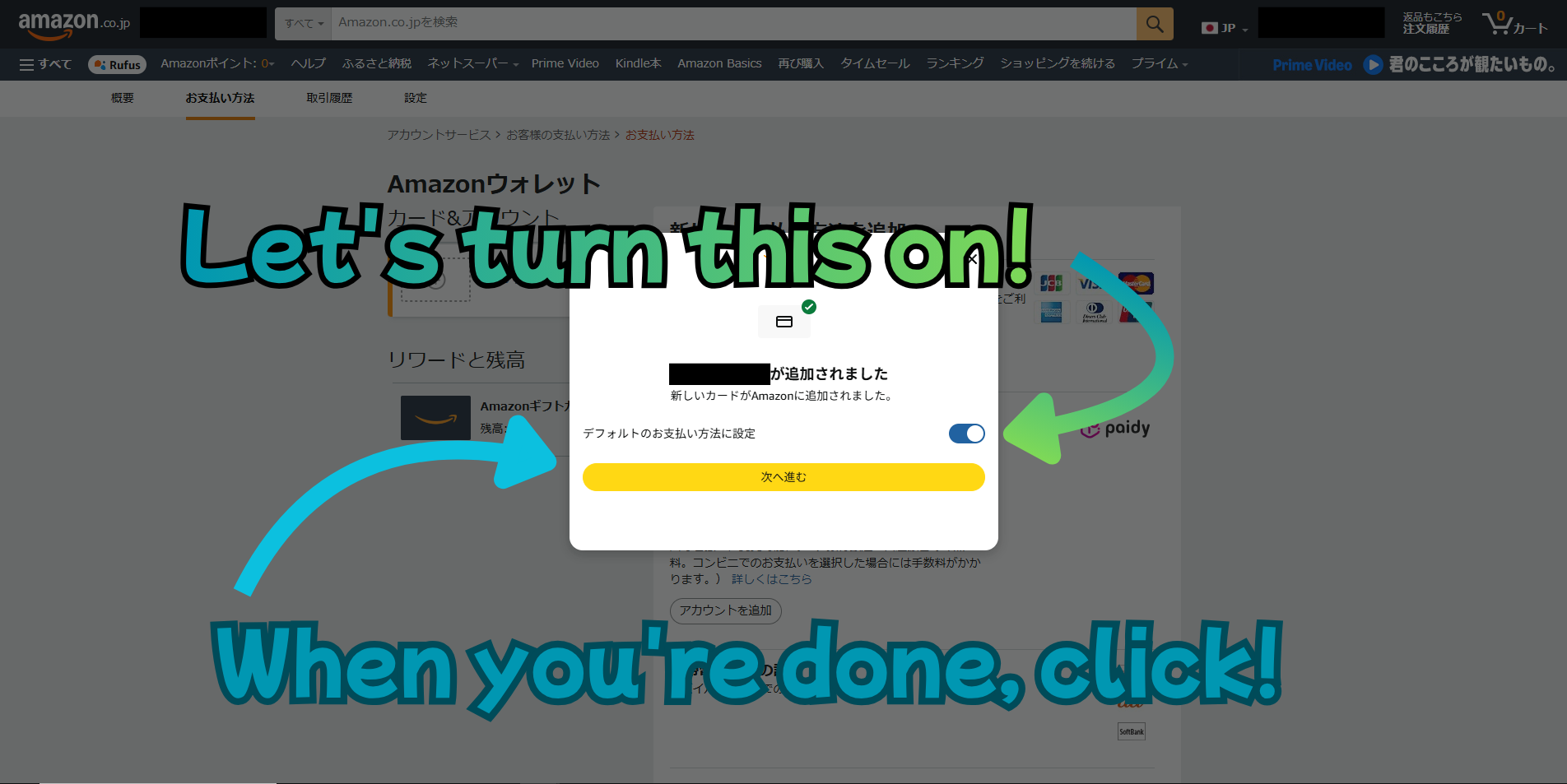
Step 10: Enable the Card
Finally, make sure the toggle for your card is turned on. When you're done, click the button to confirm.
🎉 Your credit card is now registered on Amazon Japan — you're ready to use Amazon Pay on FANZA!
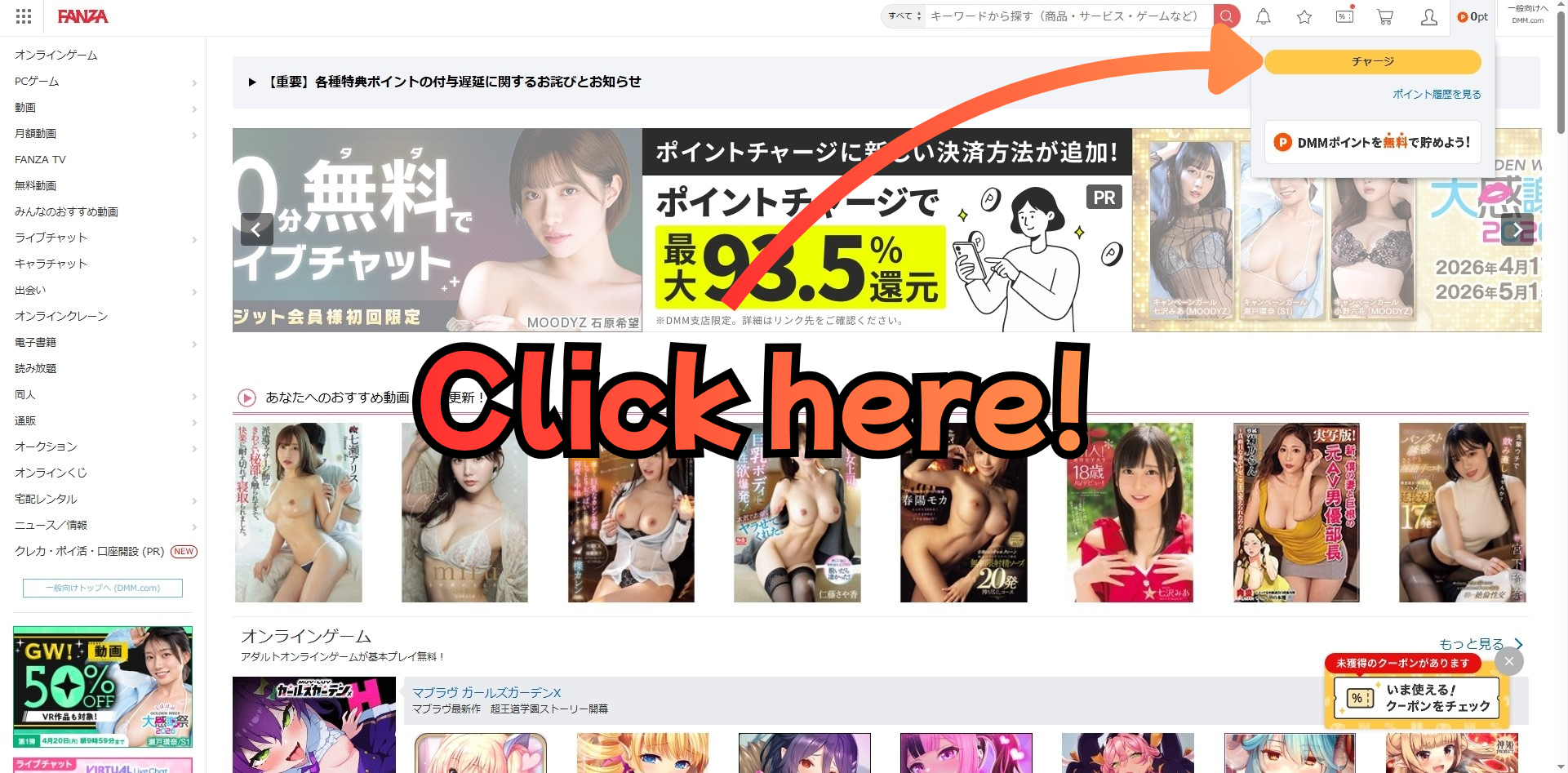
Step 11: Go to FANZA and click the Charge button
Setup complete! Now it is time to purchase DMM Points.
Make sure your VPN is ON, then go to fanza.com and log in. Click the orange チャージ (Charge) button in the top right corner.
Step 12: Select Amazon Pay
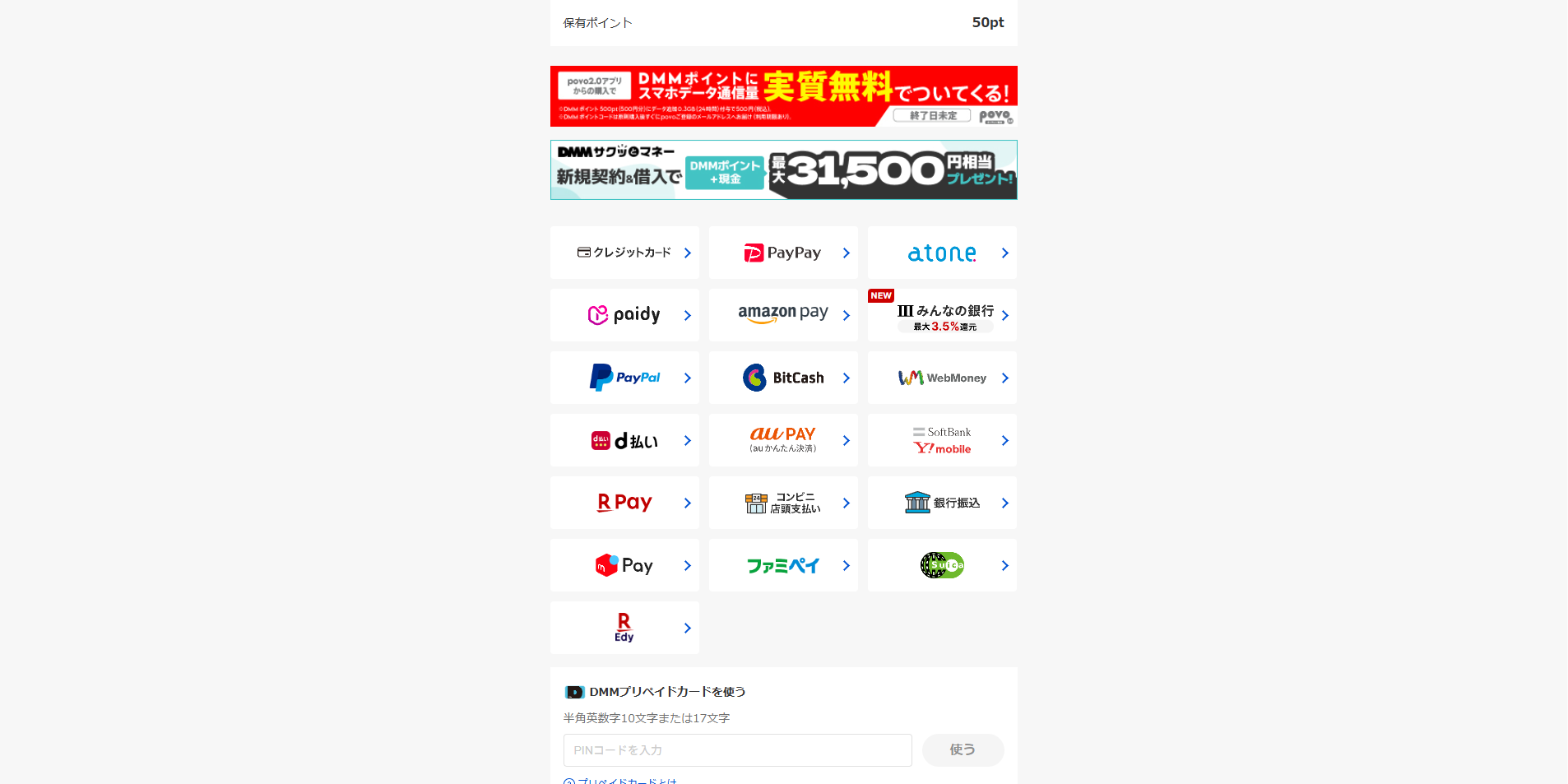
You will see a list of available payment methods. Select Amazon Pay from the list.
Step 13: Choose the amount to charge
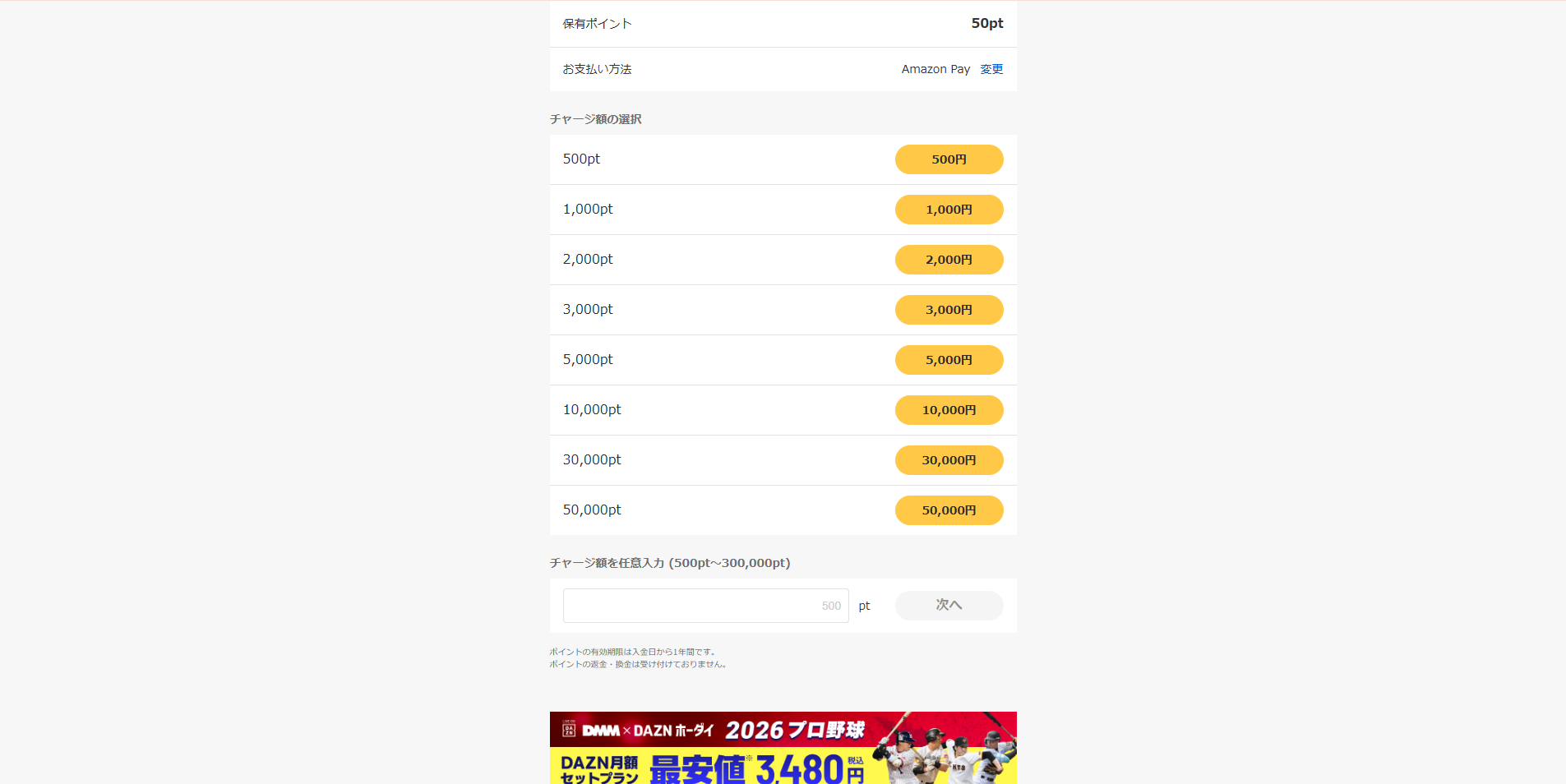
Select how many points you want to add. 1pt = 1 JPY.
Choose a preset amount (500pt–50,000pt) or enter a custom amount between 500pt and 300,000pt.
Step 14: Confirm and click the Amazon Pay button
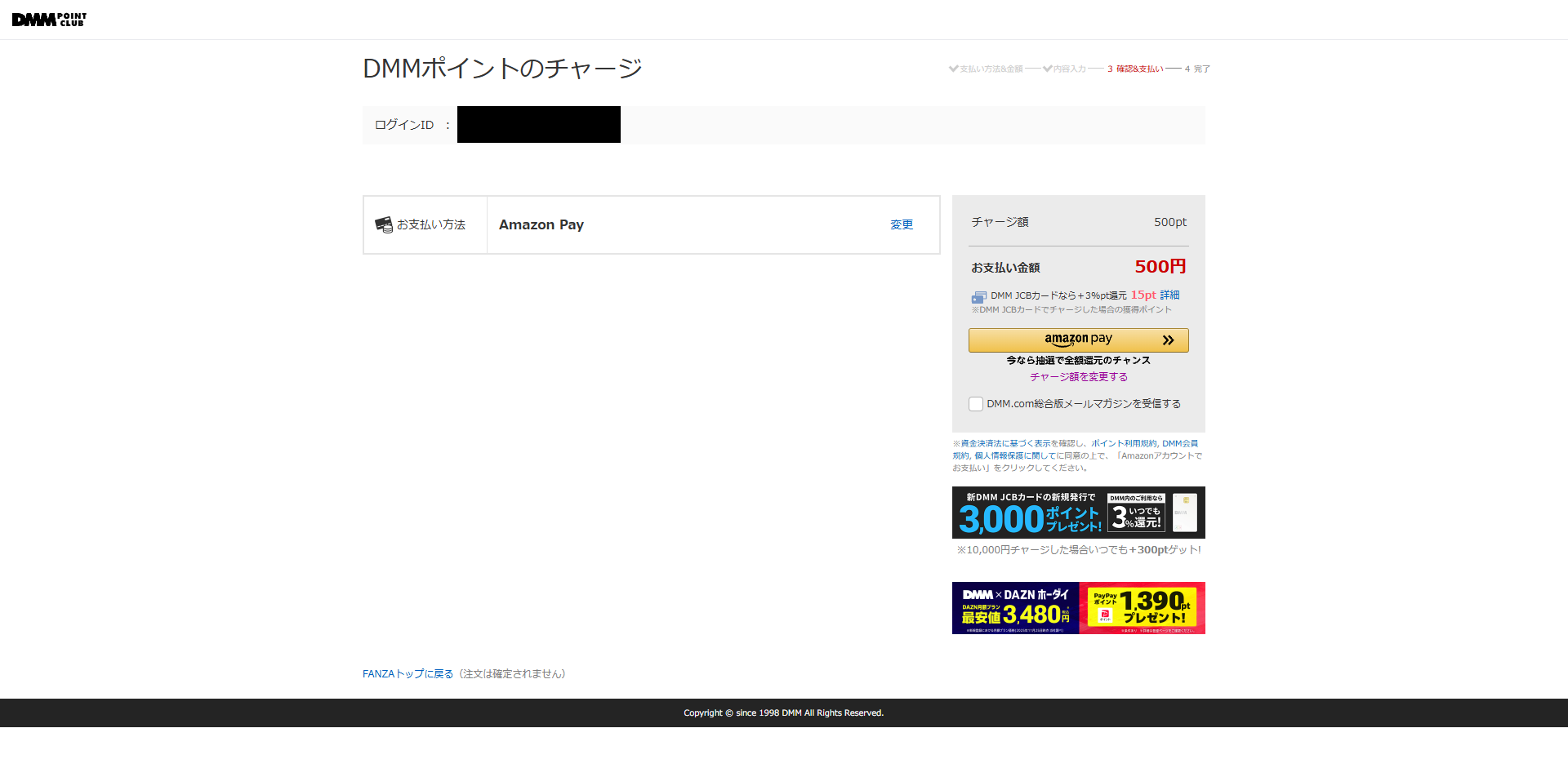
Review your order details — payment method (Amazon Pay) and charge amount. When everything looks correct, click the Amazon Pay button to proceed.
Step 15: Complete your payment
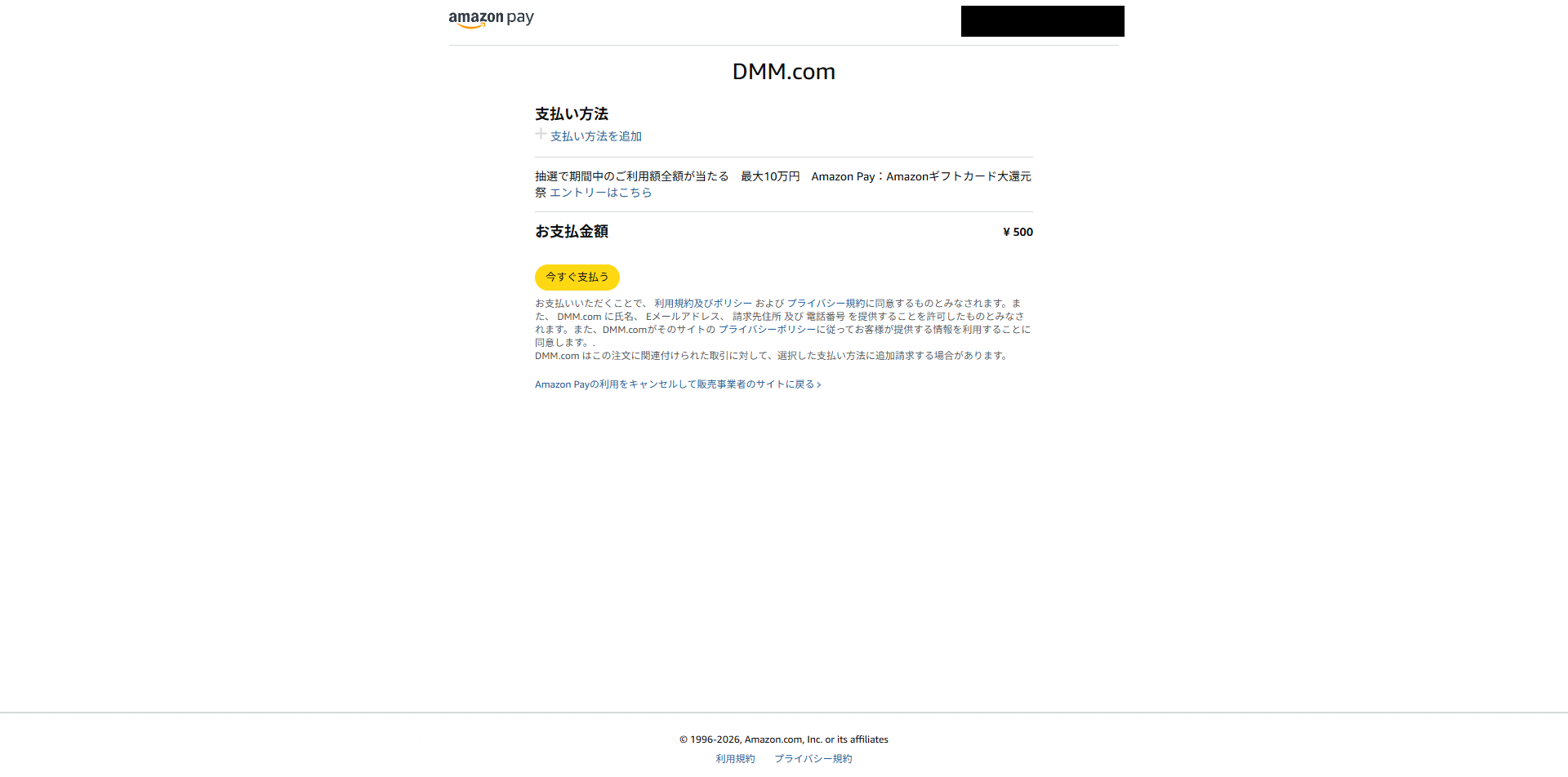
You will be redirected to the Amazon Pay page. Confirm the payment amount and click 今すぐ支払う (Pay Now) to complete the purchase.
Your DMM Points will be added to your account immediately — enjoy FANZA! 🎉
> ⚠️ If your payment is declined, try our SEAGM payment guide as an alternative.